طراحی سبک سورئال صحرا بشر سنگ دستکاری مجسمه در فتوشاپ
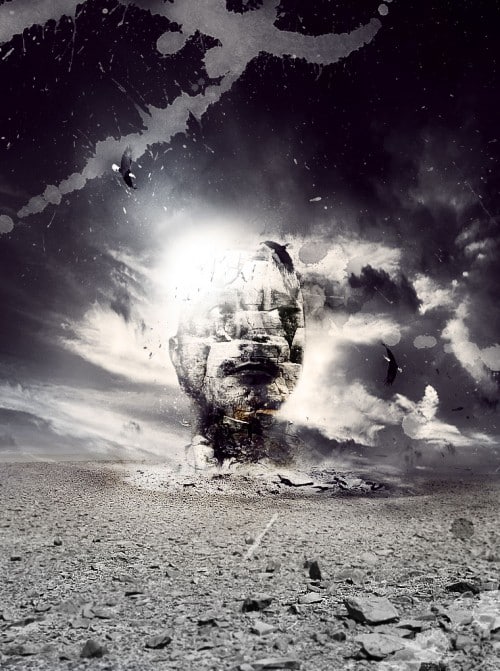
Ok Let’s get started!
To complete this tutorial, you will need the following stock: (Some stocks requires registration and are NOT free)
Sky
Desert Ground
Model
Rock Texture
Eagle
Optional stock: Splatter Brush, Debris Brush
Step 1
Create a new document sized 760px * 1020px with white background. Load the Sky photo into Photoshop and select the sky portion:

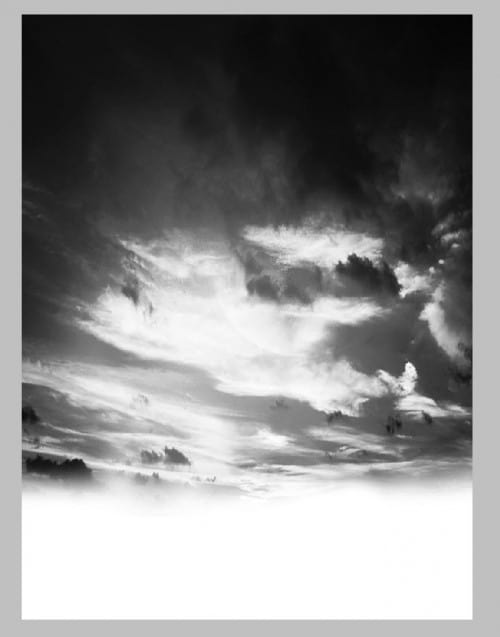
Copy and paste the sky selection onto our canvas, then increase the height of the sky until it covers 70% of the canvas:
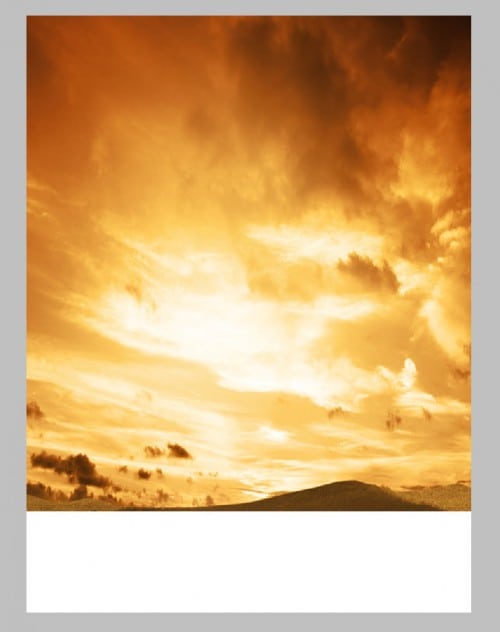
Then use a soft eraser to remove the bottom edge of the sky:
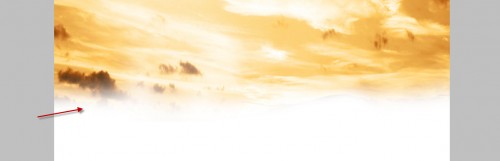
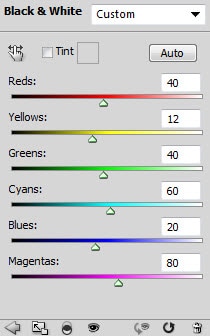
For this tutorial we want to remove the colour and increase the contrast of the sky, so add the following 2 adjustment layers as clipping mask to this sky layer:
Black and white
Curves
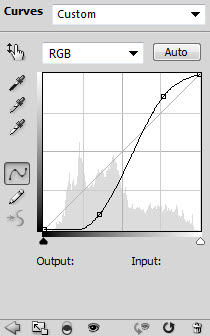
and here is the effect so far:
Step 2
Now we can add the ground part to the image. Load the desert image into Photoshop, then select the ground part of the image:
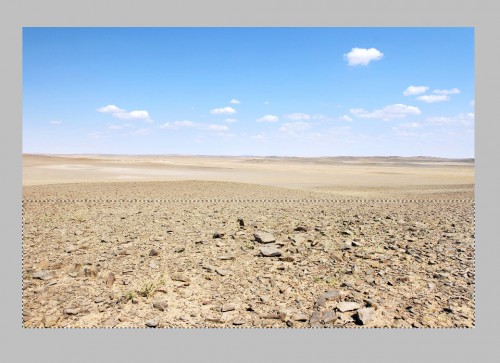
Copy and paste the selection onto the canvas, then add the following two adjustment layers to the ground texture layer as clipping mask:
Black and white

Layer mask on Black & White adjustment layer:
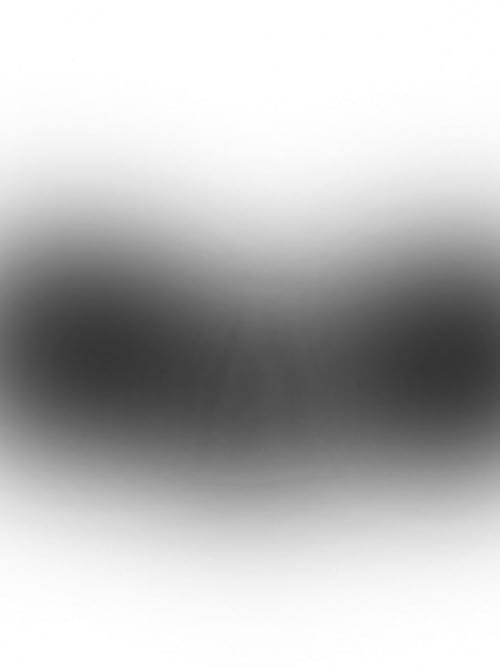
Curves
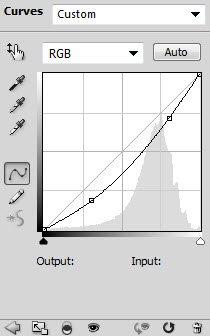
Layer mask of the Curves adjustment layer:

Make sure you erase the top part of the ground with a soft eraser, so that it blends into the sky:
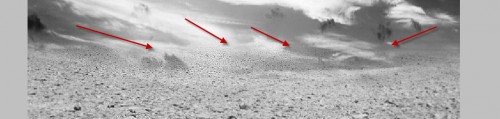
and here is the effect so far:
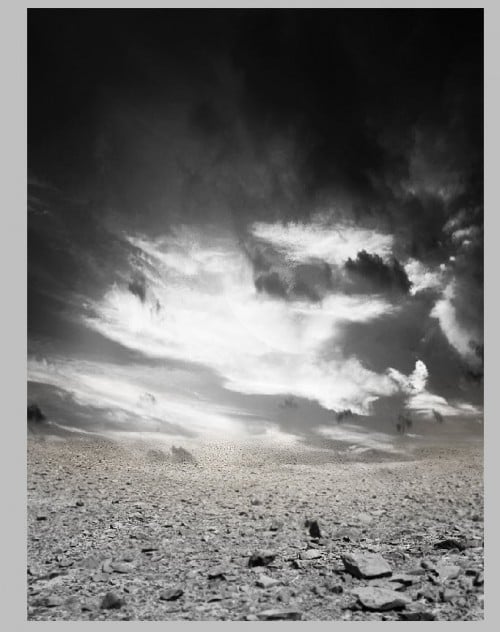
Step 3
Load the model image into Photoshop, cut it out and place it to the centre of the canvas: (resize it with free transform tool)
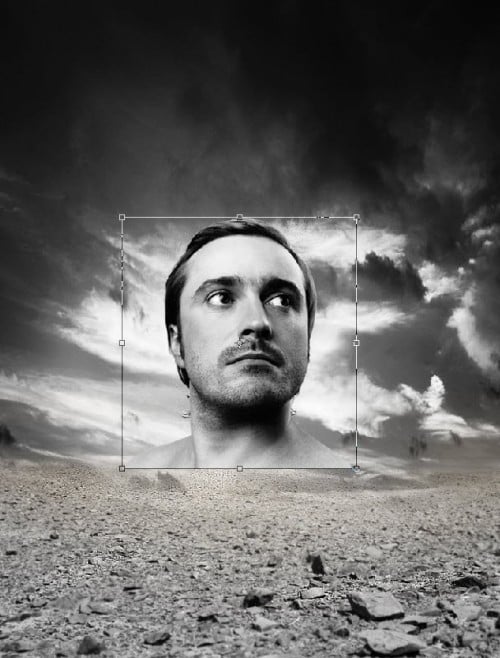
Remove the hair and the bottom part of the portrait with a soft eraser:
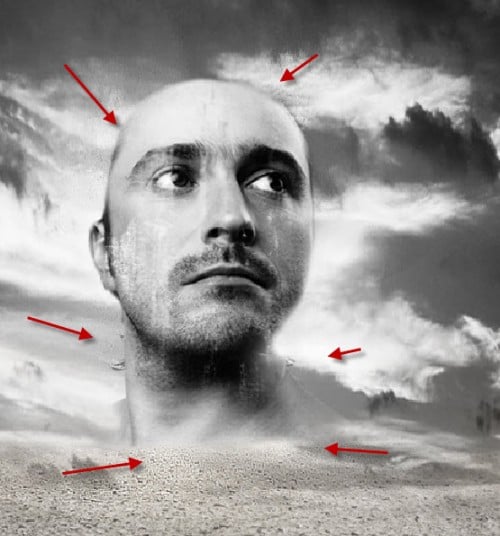
Go back to the desert image and select a small piece of this ground texture:
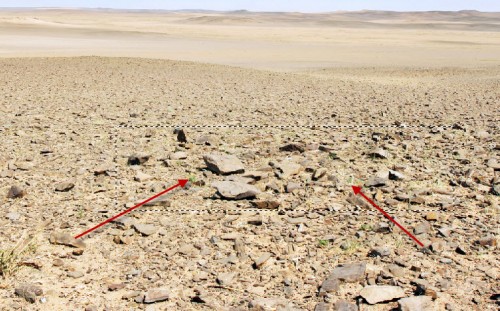
Desaturate this small rock layer via Shift + Ctrl + U, again remove the edges with a soft eraser:
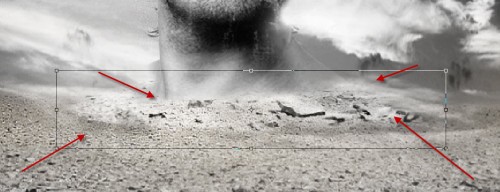
Step 4
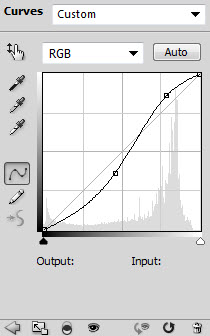
Now add a Curves adjustment layer as clipping mask to the model layer to increase the contrast a bit:
Load the rock texture into Photoshop, then select a piece of the rock texture from the image, make sure you choose an area with lots of variety:
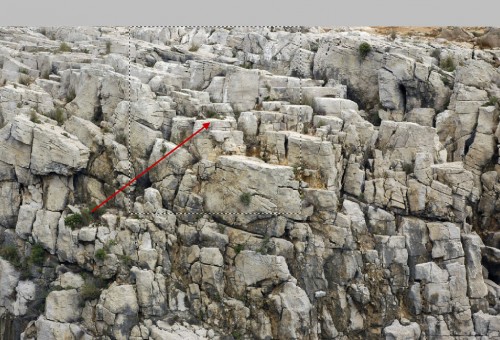
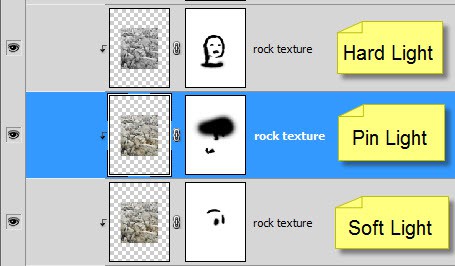
Here is the tricky part: copy and paste the selection onto the image, set the new layer as clipping mask to the model layer, duplicate it three time, and use the following layer blending mode as shown below:
Important: apply layer mask to each layer according to the screenshot below to reveal the eyes and lip of the model. Adjust the layer opacity as you see fit. I use around 80-90% opacity for each layer.
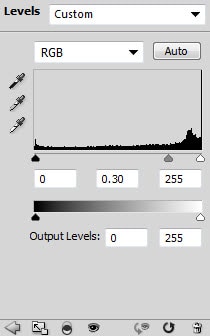
Add a Level adjustment layer on top of all the textures as clipping mask:
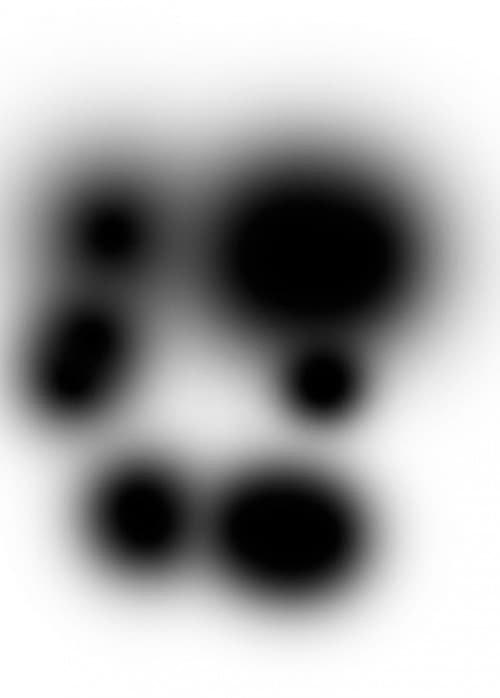
Layer mask on this levels adjustment layer:
and here is the effect so far:

Step 5
We can add some flying eagle to the image for more depth. Load the Eagle image into Photoshop, select the eagle via Magic Wand tool:
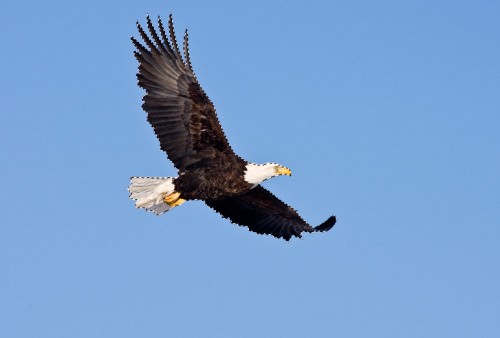
Copy and paste the eagle onto the canvas and reduce its size, then duplicate this layer a few times, rotate and scatter them around the canvas as shown below:
Hint: reduce the layer opacity of each layer so they fade into the cloud. Also make sure the furthest eagle is the smallest in size.
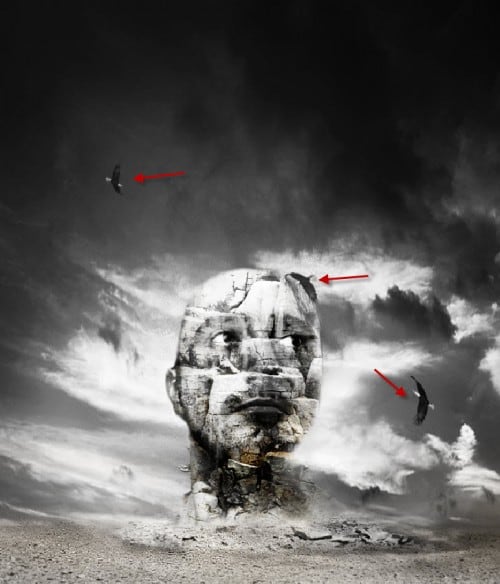
For more details, you can use a soft black brush to paint some shadow under the rock:
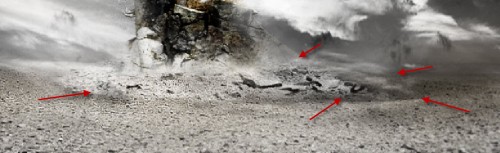
Optionally, you can use the debris brush to add some dusts around the status:
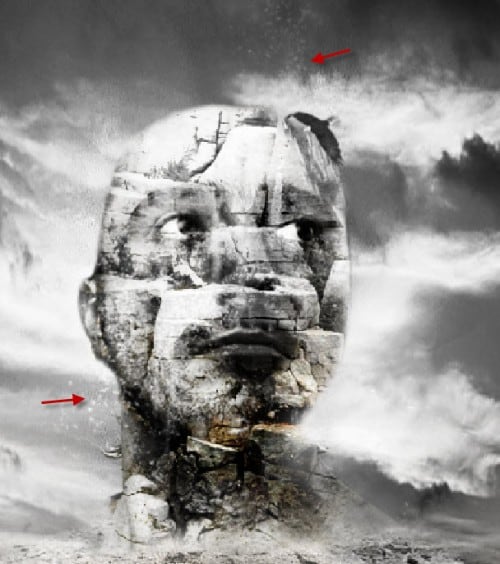
You can also add a spot light by creating a new layer on top of all previous layers, and use a soft white brush to do a single click:
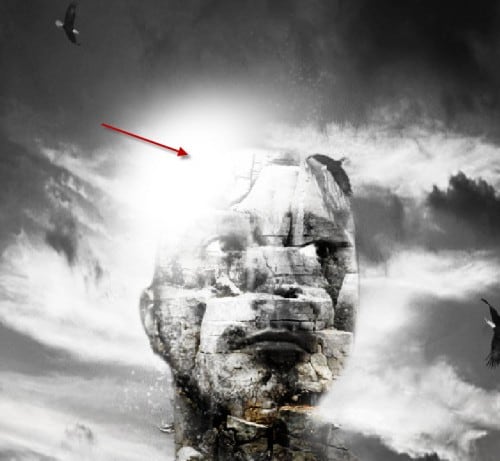
and here is the effect so far:

Finally, we can add some colours and perhaps sharpen the image a bit. I want you to experiment with different colour scheme and see what result they will bring you. One thing you need to remember is DO NOT over-use colour, a subtle effect will do in this occasion.
I also added some splatter brush paint just to spice up the image a bit.
Here is the final effect I have for this tutorial: (click to enlarge)
That’s it for this tutorial! Hope you enjoy this tutorial and find it useful! Till next time, have a great day!
برچسبها:
نویسنده: <-BlogAuthor->


